TestReport Generation
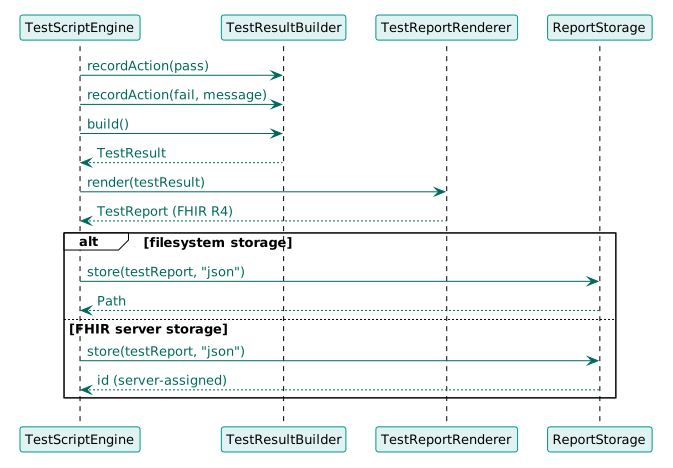
FHIR Frog builds TestReports incrementally inside the client-side ResourceSpace during execution. Each action result is appended to the report as it completes, so the TestReport is always a live FHIR resource with proper references — not a post-hoc reconstruction.
Generation Flow
Automatic Generation
JUnit Extension
@ExtendWith(FhirFrogExtension.class)
@GenerateTestReport(
    format = "json",
    outputDir = "target/reports",
    uploadToServer = true
)
class PatientTests {
    @TestScript("classpath:fhir/patient-crud.json")
    void testPatient() {}
}
Maven Plugin
<configuration>
    <testScript>src/test/resources/fhir/test.json</testScript>
    <serverUrl>http://localhost:8080/fhir</serverUrl>
    <reportDir>target/fhir-reports</reportDir>
    <reportFormat>json</reportFormat>
</configuration>
CLI
java -jar fhir-frog-cli.jar \
  -t patient-crud.json \
  -s http://localhost:8080/fhir \
  -r ./reports \
  -f json
Generation Process
- Create ResourceSpace — A new space is created for the execution
- Register TestScript — The TestScript is registered by canonical URL or generated ID
- Create TestReport — An in-progress TestReport is created with a
Referenceto the TestScript - Execute phases — Setup, test, and teardown actions append results to the report incrementally
- Finalize — Status set to
completed, result set topassorfail,issuedtimestamp set - Return — The TestReport is available via
ExecutionResult.getTestReport()
Report Structure
Header
{
  "resourceType": "TestReport",
  "id": "patient-crud-20260311-123456",
  "status": "completed",
  "testScript": {
    "reference": "TestScript/patient-crud"
  },
  "result": "pass",
  "score": 100.0,
  "issued": "2026-03-11T12:34:56Z"
}
Setup Results
{
  "setup": {
    "action": [
      {
        "operation": {
          "result": "pass",
          "message": "Patient created",
          "detail": "HTTP 201 Created"
        }
      }
    ]
  }
}
Test Results
{
  "test": [
    {
      "id": "test-1",
      "name": "Read patient",
      "result": "pass",
      "action": [
        {
          "operation": {
            "result": "pass",
            "message": "Patient read successfully"
          }
        },
        {
          "assert": {
            "result": "pass",
            "message": "Response code is 200"
          }
        }
      ]
    }
  ]
}
Teardown Results
{
  "teardown": {
    "action": [
      {
        "operation": {
          "result": "pass",
          "message": "Patient deleted"
        }
      }
    ]
  }
}
Customization
Custom Report ID
TestReportRenderer renderer = new TestReportRenderer();
renderer.setIdGenerator(testScript ->
    testScript.getId() + "-" + System.currentTimeMillis()
);
Custom Metadata
TestReport report = renderer.render(testResult);
report.setTester("CI/CD Pipeline");
report.addIdentifier()
    .setSystem("http://example.org/test-runs")
    .setValue("run-12345");
Error Handling
Failed Tests
{
  "test": [
    {
      "result": "fail",
      "action": [
        {
          "assert": {
            "result": "fail",
            "message": "Expected 200, got 404",
            "detail": "Patient not found"
          }
        }
      ]
    }
  ]
}
Execution Errors
{
  "result": "error",
  "message": "Server connection failed",
  "detail": "Connection refused: http://localhost:8080/fhir"
}
Best Practices
Unique IDs
Use timestamps or UUIDs in report IDs for uniqueness.
Sensitive Data
Avoid including sensitive patient data in test reports.
- Consistent naming - Use predictable report IDs
- Include metadata - Add tester, environment info
- Store securely - Protect reports with test data
- Archive old reports - Implement retention policies